2D to 3D Video Converter: Turn Any Video into 3D
 Spatial Media ToolkitTurn photos and videos into 3D on iPhone, iPad, Mac and Vision ProGet
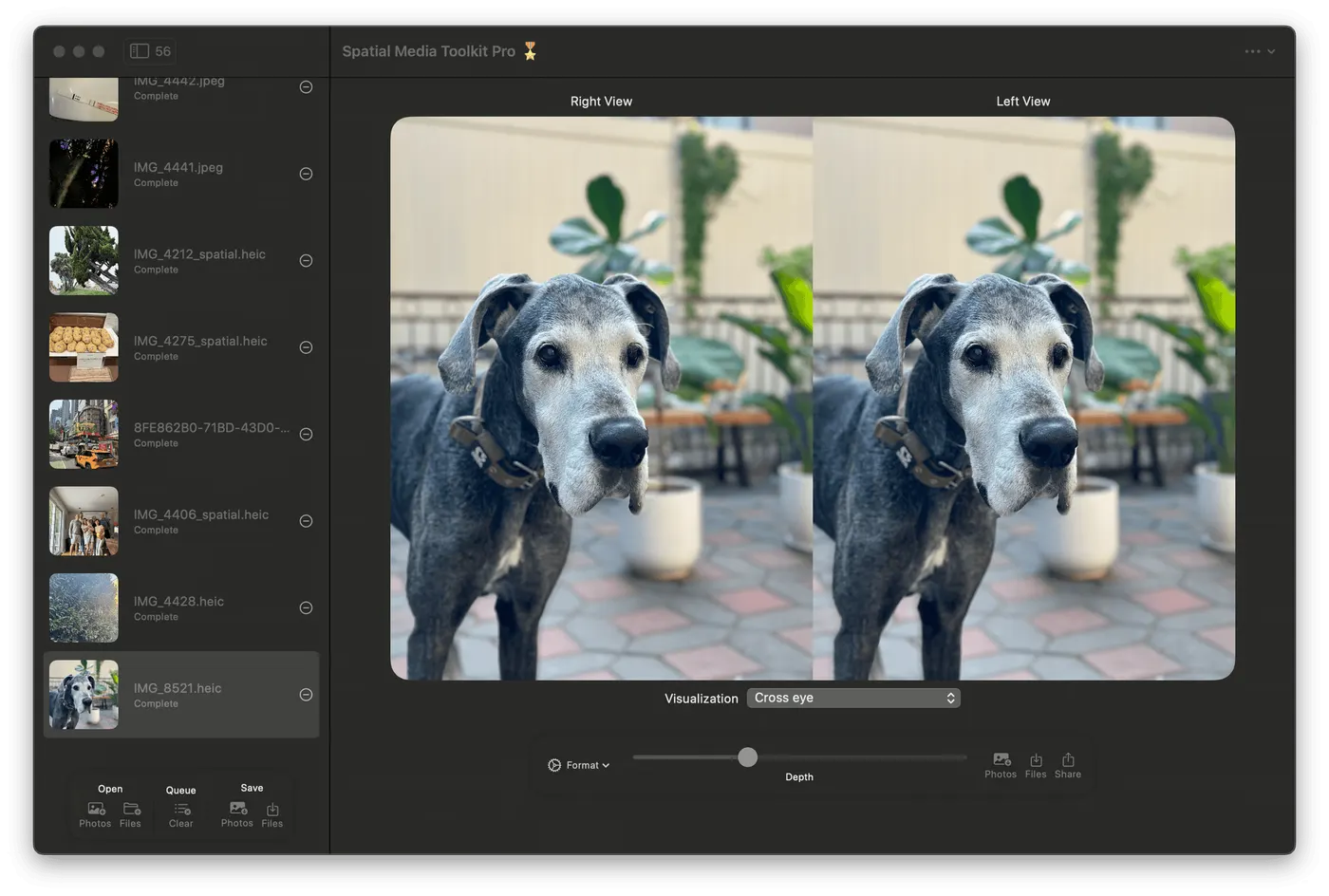
Short answer: a 2D to 3D video converter estimates how far away everything in each frame is, then builds a separate view for each eye. Spatial Media Toolkit does this on your iPhone, iPad, Mac or Apple Vision Pro. It turns an ordinary video into an Apple spatial video for Vision Pro, a side-by-side 3D video for Meta Quest and other headsets, or a red-cyan anaglyph for 3D glasses.
How 2D to 3D video conversion works
A normal video is shot through one lens, so it has no second viewpoint. A converter has to invent one. It runs a depth model on every frame to work out what's near and what's far. Then it shifts near objects more than far ones to create the left-eye and right-eye images. When each eye sees its own image, your brain reads the difference as depth.
Two things separate a good converter from a bad one. The depth has to be accurate around edges, like hair, hands and tree branches, or you get shimmering outlines. And it has to stay steady from frame to frame, or the scene seems to breathe. Spatial Media Toolkit uses the Depth Anything model, run on your own device.
How to convert a 2D video to 3D
- Add the video. Tap Photos or Files, or drag the video in. You can add as many videos as you like and convert them as a batch.
- Trim it if you want. Drag the ends of the trim bar so only the part you care about gets converted. The audio is trimmed to match.
- Pick the output format.
- Apple Spatial for Vision Pro. This writes an MV-HEVC spatial video that the Photos app plays in 3D.
- Side by side stereo for Meta Quest and other headsets.
- Anaglyph for red-cyan 3D glasses on any screen.
- Set the depth. The Depth slider controls how strong the 3D effect is. The default suits most videos.
- Preview it. On iPhone, iPad and Mac, switch the Preview menu between Cross eye, Wiggle, Side-by-side and Depth map to check the effect before you commit. On Vision Pro you see the 3D preview in the headset.
- Convert and save. Tap Convert Video, then Save to Photos or Save to Files. The original sound is kept.
On iPhone, keep the app open while it converts. If you switch apps the conversion pauses, and it picks up again when you come back. For long videos or big batches, the Mac app is the better choice. On a Mac, the AI conversion needs Apple silicon.
What to look for in a 2D to 3D video converter
- The output your headset reads. Vision Pro wants Apple spatial video (MV-HEVC). Quest and most other headsets want side-by-side. A converter that only makes one of these limits where you can watch.
- Where the processing happens. Some converters upload your video to a server. Spatial Media Toolkit converts on your device, so your home videos aren't uploaded for conversion.
- Resolution. Spatial Media Toolkit keeps the source resolution for each eye, so a 4K video gives you 4K per eye.
- Batch conversion. If you're converting a library and not a single clip, you want a queue. Copy settings to all applies one video's settings to the whole batch.
- A preview before you convert. Depth that looks right on one clip can be too strong on another. Being able to check it first saves a lot of re-converting.
Watching your 3D videos
On Apple Vision Pro: save as Apple Spatial to Photos. If you use iCloud Photos, a video converted on your iPhone or Mac shows up on the headset like any other video. The Vision Pro app can also play a regular 2D video in 3D live, without converting it first, using a faster depth model.
On Meta Quest and other headsets: save as side-by-side and copy the file to the headset. The app makes the file; it doesn't transfer it for you. Our Quest guide covers getting the file onto your Quest.
Without a headset: an anaglyph video plays on any screen with cheap red-cyan glasses.
Already have 3D video?
If your video is already side-by-side, half side-by-side or top-and-bottom, set that as the input format. The app then converts it between formats without the AI step. That's how you turn a VR video into an Apple spatial video for Vision Pro, or a spatial video from your iPhone into side-by-side for a Quest.
FAQ
Can any video be converted to 3D?
Yes. Anything your device can play can be imported. Videos with a clear subject and some distance behind it look best. Fast cuts, heavy motion blur and flat scenes like a screen recording have less depth to show.
Does it work with photos too?
Yes, the same app converts photos. See how to convert a photo to a spatial photo.
What's the difference between 3D video and spatial video?
Spatial video is Apple's name for 3D video stored in the MV-HEVC format that Vision Pro and iPhone use. Read more in what is spatial video.
Can I watch the 3D video on my Quest?
Yes. Save it as Side by side stereo and play it in a video player on the Quest that supports side-by-side 3D.
Try it
Spatial Media Toolkit runs on iPhone, iPad, Mac and Apple Vision Pro. Download it on the App Store, convert a video you love, and preview it in 3D before you save it.